Last year, during the Black Friday sale, I bought a Lenovo Thinkpad P14s laptop replacing my old Dell laptop that I bought in 2017. The new laptop is somewhat powerful with its Core Ultra 7 CPU with 32 GB RAM and RTX 500 Ada discrete graphics along with Intel Iris Xe graphics, which is thought to be the first proper iGPU built by Intel. It came with Windows 11 Pro installed by default, which is disappointing considering all the CPU and memory are effectively wasted on running useless Windows background processes. However, a year later, the laptop no longer has a warranty (I do have extended warranty, but the provider doesn’t care about the OS installed), and I’ve also managed to get some time during the holidays to experiment with my laptop.
When I was running the Windows, I set up Windows Subsystem for Linux version 2 with Arch Linux to get the benefits of a Unix system which I am more familiar with for historical reasons. The very first laptop that I owned was passed onto me by one of my elder brothers back in 2014. It was a HP laptop running Pentium III processor, not a laptop you should own in 2014. It used to be a work laptop and had 512 MB upgraded RAM, but the workplace decided to take back the RAM and it only had 256 MB RAM. It came with Windows XP installed, but it no longer performed well with the reduced available memory. In fact, I couldn’t run any sane applications on the laptop. So, after a brief investigation, I found out that Lubuntu (a lightweight version of Ubuntu that comes with LXDE desktop by default) is a suitable candidate for this laptop. This was effectively my very first experience with a Unix desktop. A year later, I got a more capable laptop from a government scholarship program. This was a Dell laptop with Haswell processor (much better than Pentium III!). The first thing I did was replaced Windows 8.1 (I think) with Ubuntu 14.04 LTS as I was more familiar with Unix systems than Windows (not to mention the ugly look of Windows 8.1). But before that I’ve also tried to install Windows 7 (the last good Windows), but it refused to install because it says the hardware is too new! Then, I was into all sorts of things like Hackintosh and Croissant projects and ended up having Hackintosh (OS X El Capitan, I think) as my main setup. Hackintosh continued to be my main set up until I bought the Thinkpad last year. I also had Artix Linux as my secondary set up, too, but never Windows.
After getting the new laptop, I’ve felt that Windows is not really a worthy operating system, and Microsoft knows it themselves: they offer a set of tools (basically an official collection of third-party tools) collectively known as PowerToys. Even then, PowerToys cannot fix all the problems of Windows, especially, Windows 11. The very first annoyance was the HUGE taskbar it has which absolutely no customizabilty. So, the first thing I did was installed ExplorerPatcher to revert back to the Window 10 version of the taskbar. Of course, for a computer programmer (and now a researcher) like me, good support for workspace is required which is virtually absent in Windows by default. PowerToys helped a little, but there are limits on what kind of shortcuts it can create or handle. Just think about it: I came from macOS which offers one of the best workspace experiences to Windows 11 where even basic window switching is absent and requires a third-party tool. I wonder how Microsoft is surviving in the desktop operating system business with this historic worse operating system!
Last week, I was looking for a good Unix alternative to Windows that is stable (sorry, Arch Linux!) enough to be used as an everyday operating system. There were several candidates: Ubuntu 24.04 LTS, Fedora Workstation 43, Pop!_OS 24.04. I was particularly looking for options with great support for Thinkpad laptops (you know, power management is a big issue) and NVIDIA graphics (especially the latter since I work in a field where I frequently need to utilize the graphics card) as well as disk encryption and secure boot. I personally hate Ubuntu (I have it in my lab computer already), so I basically had two choices: Fedora Workstation and Pop!_OS. I choose Fedora Workstation because it is more mature and time-tested (and also because Linus himself has promoted it).
Fedora Workstation comes with GNOME Shell by default which is suitable for me for many reasons. For example, it has concepts of workspace very similar to (or even better than) macOS, its keybindings and gestures are usable and very similar to macOS’, offers a distraction-free mission control experience, and offers plenty of extensions to extend those. KDE Plasma is nice, but it’s way too bloated in my experience. GNOME does have its problems, but I think over the years the team has done a very good job in improving usability of the desktop. You might think window managers like dwm and bspwm might be good for handling workspace, but they are only good if you have a desktop computer. You’ll run into all sorts of issues because these window managers are not really scalable and good luck connecting to a projector in presentation mode!
Atomic desktops have also become increasing popular, but they are not mainstream yet and therefore, not something I wanted to install as my daily driver.
Installing Fedora Workstation
[Obviously, I’m not writing a guide to install an operating system, rather I’m writing my impressions on installing an operating system.]
I went to the official website and followed instructions to download the ISO file, verify integrity and so on. But it lacked any information on how to make it bootable. So, I installed Rufus and used their dd method in UEFI mode. But it failed to boot with a message “Secure boot violation”. Then I realized that I needed to enable “Microsoft 3rd-party UEFI CA” in BIOS to boot the live desktop. After that it worked!
Then I ran into another issue: the installer itself doesn’t offer any option to format your partitions in the installer window nor does it watch for changes in partition table. So, I needed to use the Disks app to create partitions as I was dual booting (I wanted to make sure I can still use Windows if something goes wrong). So, I created a LUKS encrypted Btrfs partition (to allow snapshots, useful for a parition where you are installing your operating system) and used the default EFI partition for /boot/efi. But the problem didn’t end here. Since the root partition was encrypted, the installer was complaining that it required another partition for /boot. So, I created another small unecrypted parition (~2GB) for /boot, and it proceeded to the actual installation.
Then it failed with the following message:
'NoneType' object has no attribute 'path'
Disappointing! But I tried rebooting anyway (you know after years of experience with installing operating systems), and it worked! I was successfully able to boot into my brand new operating system!
Post-installation
The very first thing I did was installing the NVIDIA drivers (after all, all efforts will be null and void if it doesn’t have proper support for NVIDIA). The set up was trivial (basically installing some non-free software and kernel extensions). However, since I have Secure boot enabled, I needed some extra steps to generate a MOK signing key to sign the kernel extensions.
After that, I set up the powermanagement for my laptop which means simply installing and setting up tlp and tlp-rdw.
That’s it. Post-installation is complete!
Migrating Away from Windows
As my Fedora set up is complete. Now, it’s time to move away from the vicious Windows. The partion consumed almost 450 GB for no reason. So, it’s a big gain for me as well and wanted to do this strategically: I wanted to remap the parition to /home. To do this, I needed to complete the migration first, and I wanted to do this without booting into Windows (I have tolerated that operating system far too long!).
The quickest way to achieve this is to see what software I installed there and which once I need to migrate. This is a little bit complicated for some software but easy for the most part.
The most problematic was migrating away from the browsers. I used Ungoogled Chromium (UGC) as my primary browser and Mullvad as a secondary. Both browsers have a lot of bookmarks that needs to be migrated. So, I looked online for guides on how to do this, and it appears to be fairly simple. But I had four profiles in UGC, it it took sometime to migrate them using this excellent tool.
Then, I had a few files stored in Documents, Downloads which I needed to copy to some place for later migration. I also had some configurations at ~/.ssh which I needed to migrate. Finally, I also had several projects stored in WSL2 Arch distro. For this, I needed to copy the VDIX file to mount it later for copying the essential files.
Once the migration is complete. I formatted the partition in ext4 with LUKS (since this is a data partition, I didn’t bother with Btrfs), copied contents of /home to the root of the parition, set up /etc/fstab to use this parition as /home and renamed /home to /home.bk in case something goes wrong. (I still had my pen drive bootable for this reason.)
I rebooted and the migration was a sucess!
I copied all data back to their respective folders in my Fedroa installation and cleaned up those files including the VDIX file.
Getting the Most Out of Fedora Workstation
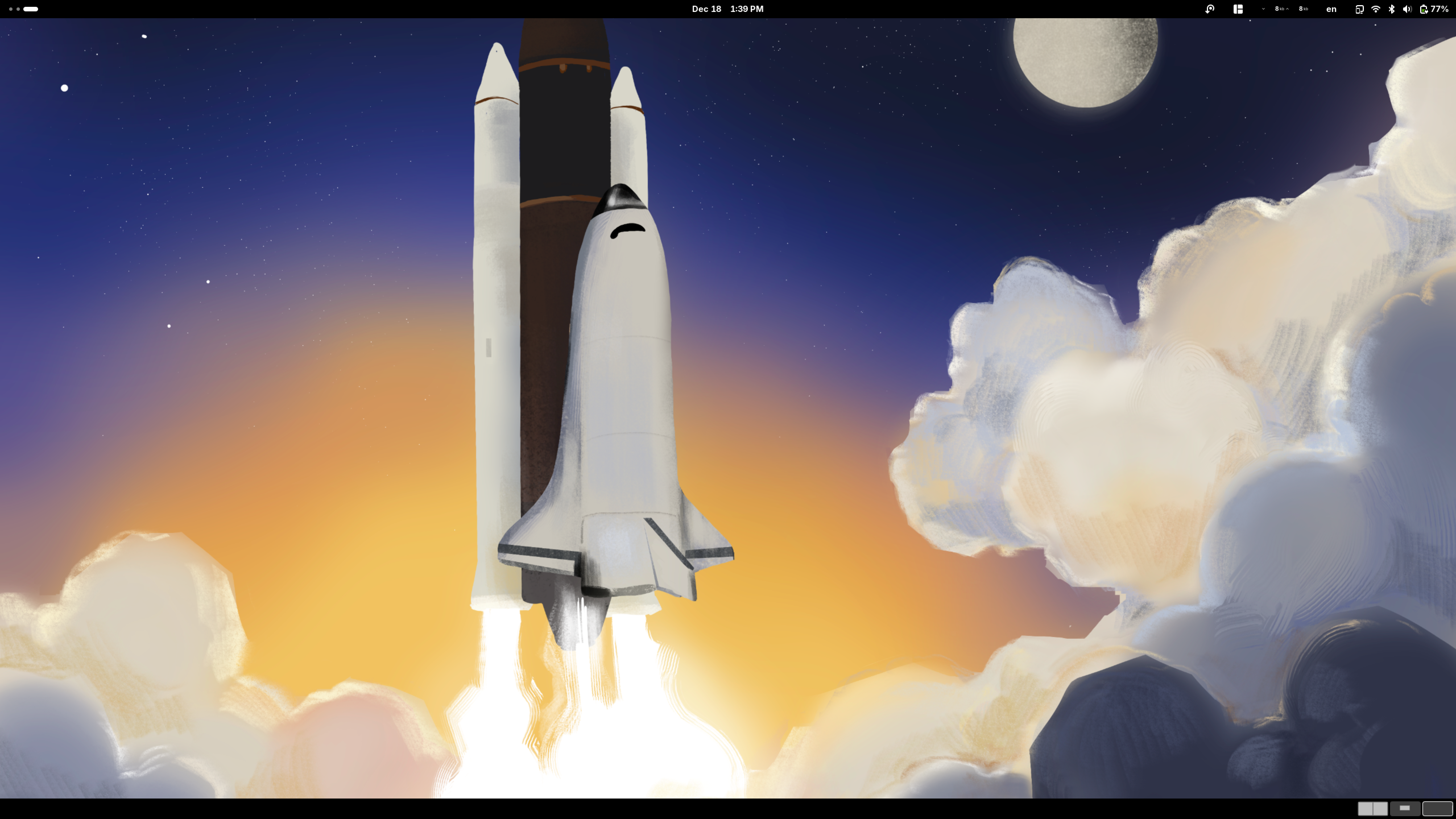
Now that the setup is finished. I wanted to actually look into the GNOME Shell desktop to see how it compares with my requirements and expectations, and I have to say I’m very satisfied even with the default interface! GNOME team, it seems, have finally done a good job with their desktop!
As some of you know, I use disroot.org’s NextCloud for CalDAV and CardDAV syncing, and I was surprised to discover that GNOME desktop supports NextCloud specifically by default (including WebDAV, but it doesn’t have proper caching, needed to use rclone instead). Windows doesn’t even have support for CalDAV or CardDAV (actually they do not even have a calendar in first place).
Other essential software, such as Firefox, LibreOffice, Calendar, Calculator, Contacts, were already installed in the system. I only needed to install a few more that I use, such as BitWarden, FreeTube, Inkscape, nheko (Matrix client), Oracle VirtualBox (needed as an instructor for Computer Security course), Telegram, Thunderbird, UGC, VSCodium, Android Studio, and Ghidra.
Unfortunately, I didn’t find a single offline music player for my taste. So, I ended up installing Elisa and Recordbox. And I did all this using GNOME’s Software application. I’ve never thought this could be done in Linux (other than Ubuntu’s Snap, of course, which I detest). Somebody wrote a whole article on the usability of music players in Linux (TL;DR; not good).
The GNOME Shell desktop is good, but some extensions were required to make it more productive, especially, if you’re using a keyboard and a mouse or touchpad. I used Tiling Shell as a tiling manager instead of GNOME’s default (which is not very powerful), Window List for listing the windows at the bottom of the screen, and Auto Move Windows that allows assigning specific workspace for each application. There are a few other interesting extensions for window/workspace management that I have installed: Deja Window which is useful for restoring window states and Maximize Window Into New Workspace which creates a new workspace when you maximize a window (a very useful feature found in macOS).
I also wanted display the network speed in the status bar. So, I installed system-monitor-next extension and only enabled the network portion.
Finally, since I own an Android phone and mostly work on my laptop. I wanted to display the notifications to my laptop. For this, I used GSConnect with KDE Connect.
So, here at last, I found an operating system that balances features, customization, and usability together, in certain areas far better than macOS, and fully free and open source (well, mostly, since I still needed to install the NVIDIA drivers)! This is definitely my favorite operating system!